Dedicated server or VPS: when does migration make sense?
Use measured bottlenecks, exact hardware, total cost and a tested rollback plan to decide whether to move from a VPS to a dedicated machine.
Updated
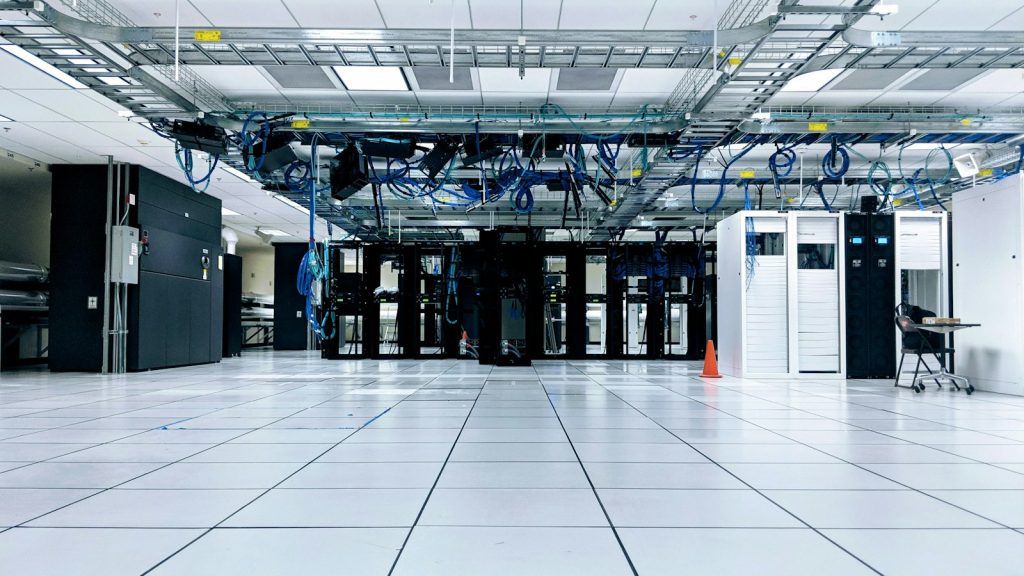
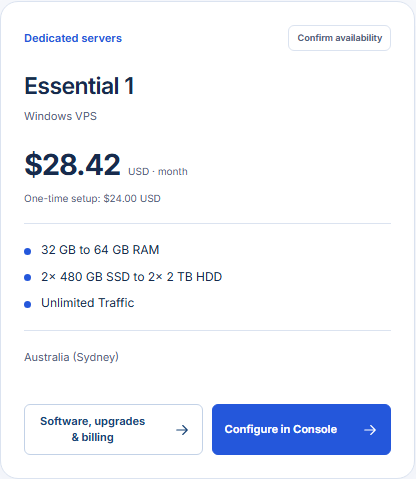
A dedicated server is a physical machine assigned to your service; a VPS is a virtual server with the resource allocation described by its plan. Neither label alone predicts application speed or reliability. Move to dedicated hardware when a measured constraint, required hardware feature or operating model justifies it. This guide shows what to check before you migrate.
When a VPS is still the right fit
Keep comparing VPS plans if your application fits its RAM and disk limits, its CPU performance is adequate under real load, and you value a smaller starting commitment. Before blaming virtualization for a slow application, measure CPU saturation, memory pressure, database queries, disk I/O and network behavior. A poor query or undersized database can remain slow on a larger physical server.
On GhostVPS Cloud VPS, CPU allocation type, storage, location and optional upgrades differ between plans. An upgraded VPS may solve a bottleneck without a full migration. Confirm the target plan’s actual options in Console rather than assuming every VPS can be scaled in place.
Signals that justify a dedicated shortlist
- Your measured workload needs a sustained CPU or memory configuration that is better matched by a physical server offer.
- You require a specific processor, disk layout or hardware feature listed on a dedicated plan.
- You can operate the machine and accept the provisioning and migration work.
- The total configured cost makes sense for steady use after setup fees and backup costs are included.
Dedicated hardware does not automatically give your application high availability. A single physical machine can fail; design backups, monitoring and recovery separately. Likewise, “dedicated” does not mean managed software administration unless the selected service explicitly includes it.
Compare an actual pair of plans
Shortlist one VPS and one dedicated server in suitable locations. Record CPU model or allocation, RAM, disk type and layout, network terms, available OS, billing period, setup fee and provisioning conditions. Compare your measured peak workload against each configuration. Do not compare only the headline core count: physical cores, shared vCPUs and CPU generations are different measures.
| Decision item | Evidence to collect |
|---|---|
| Performance | Representative application response, CPU, memory and disk peaks |
| Cost | Configured recurring total, setup fee, backup and software options |
| Operations | Who updates the OS, monitors hardware and restores from backup? |
| Migration risk | Data size, allowed downtime and tested rollback path |
Move with a rollback plan
Make a current backup of files and databases and restore it to the target before changing DNS. Test application login, jobs, outbound mail, storage paths and integrations from the new machine. Measure the same workload on both systems with the same test method. Schedule a short final sync and document how you will return traffic to the old VPS if a required check fails. Keep the original service until the new environment and backups have passed verification.
Complete the order only after checking the exact dedicated plan, OS, options, availability and final price in the Dedicated Server category in Console. For a detailed resource checklist, read how to compare CPU, RAM, disk and location.