GHOSTVPS / Connect
Connect a domain to your VPS and verify HTTPS
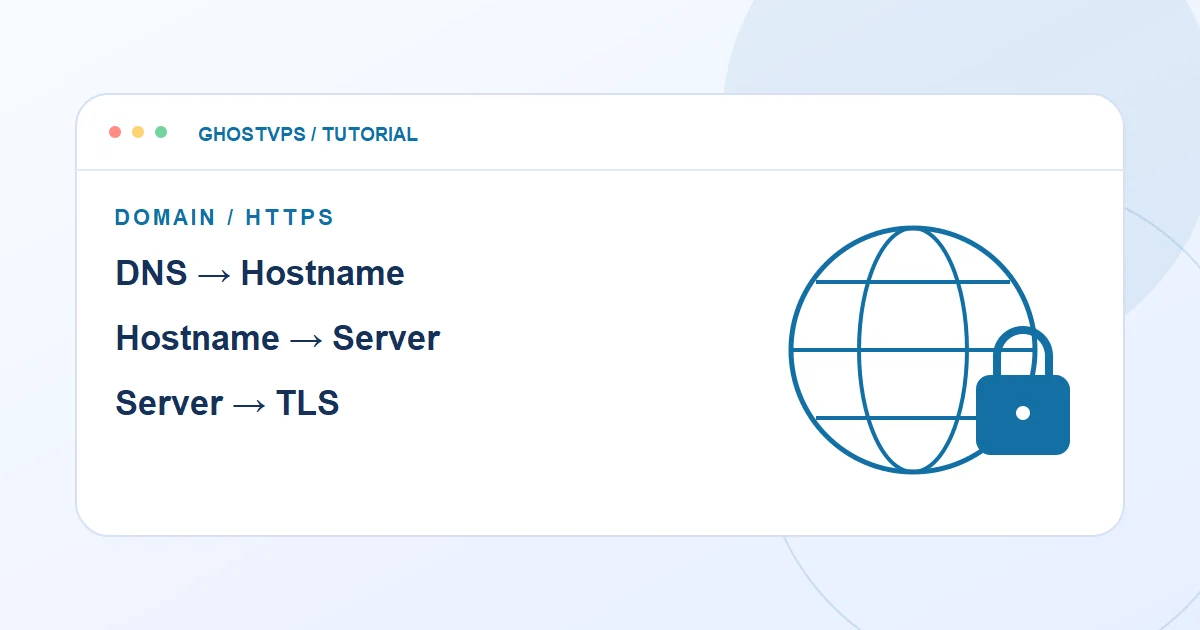
Point DNS to the intended service, check public resolution, configure the web server and confirm a valid HTTPS certificate.
Updated · GhostVPS
Before you start
A domain you control, a running web service, and the correct public IP or hostname for that service. If a CDN proxy is enabled, public DNS may show the proxy address rather than your origin. Back up existing DNS records before editing them.
Choose the hostname and destination
Decide whether the site should use the root domain, www, or a subdomain. Record the current A, AAAA and CNAME records and the new destination supplied by your hosting service. Do not point email MX records at a web server by mistake.
Add the relevant DNS record
At your active DNS provider, create an A record for an IPv4 destination, AAAA for IPv6, or a CNAME when your service provides a hostname. Avoid keeping an old conflicting record for the same host. If your DNS provider offers proxying, choose its mode deliberately and understand that a proxied lookup returns proxy addresses.
Verify resolution from outside your panel
Query a public resolver for the exact hostname. Compare the answer with your intended DNS mode: the origin IP for DNS-only, or the proxy address for a proxied record. Cache delay is possible; check authoritative DNS and local cache before changing the record repeatedly.
Your computer · terminal
nslookup yourdomain.example
nslookup www.yourdomain.example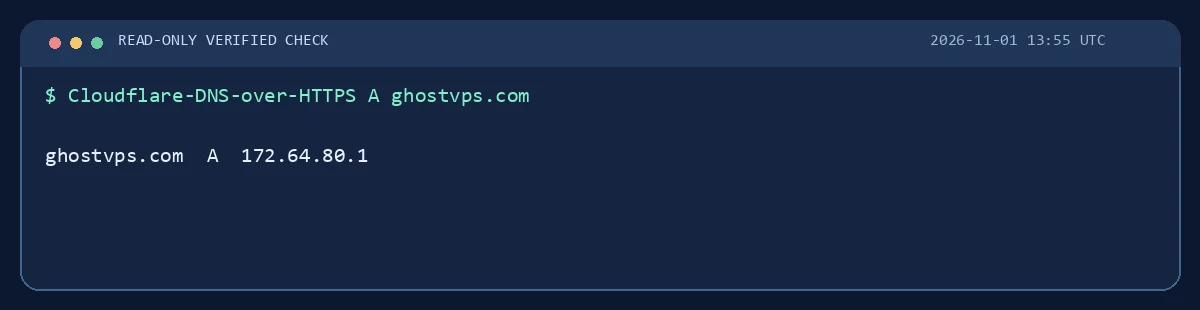
Serve the hostname and obtain a certificate
Configure the site hostname in your web server or hosting panel, then use its supported certificate workflow. If this is a direct Nginx origin, DNS points to it, and port 80 is reachable, Certbot can request and install a certificate as shown below after replacing the example domain. A CDN proxy may require different origin validation; follow the provider-specific process rather than disabling security settings blindly.
Your VPS · Linux terminal
sudo certbot --nginx -d yourdomain.exampleTest the public URL and renewal path
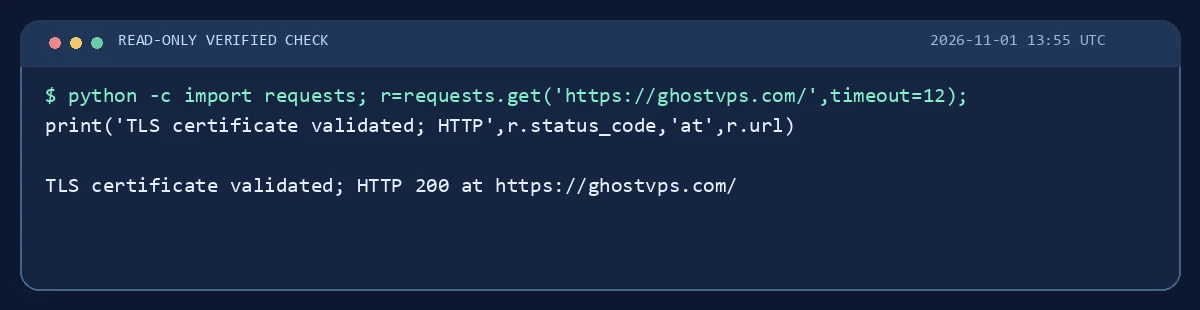
Open both http:// and https:// for the intended hostname. Confirm the final URL, hostname match, certificate validity and that the content is your site. Also test the redirect from the unused hostname, then verify certificate renewal with the chosen certificate tool. A padlock alone does not prove the site points to the right server.
Your computer · terminal
curl -I https://yourdomain.example