
01
Open your free test service
In Console, choose Services → My Services. Open the row named Free Test VPS. If it says Active but no server appears, that is normal: you must deploy an instance next.
Open My Services
EXPLORE BEFORE YOU DEPLOY
Connect to a test server, try your workload and explore the customer Console before choosing your next VPS.
After checkout, open My Services and select Free Test VPS. The order alone does not create a server; click Deploy New VPS on the service page. The 30-minute timer starts when the free service activates.
GHOSTVPS / How it works
Register, verify your email and complete the free service order. Then deploy the server using the guide below.
Register in GhostVPS Console, or sign in if you already have an account.
Register in ConsoleComplete email verification before requesting the free test service.
Sign in to ConsoleOpen Free Test VPS, choose Order Now and finish the $0 checkout. This activates the test service; you still need to deploy a VPS from its details page.
Open Free Test VPSGHOSTVPS / AFTER ORDERING
The free order activates the service, but leaves the instance list empty until you deploy one. Follow these four steps in Console immediately after checkout.
In Console, choose Services → My Services. Open the row named Free Test VPS. If it says Active but no server appears, that is normal: you must deploy an instance next.
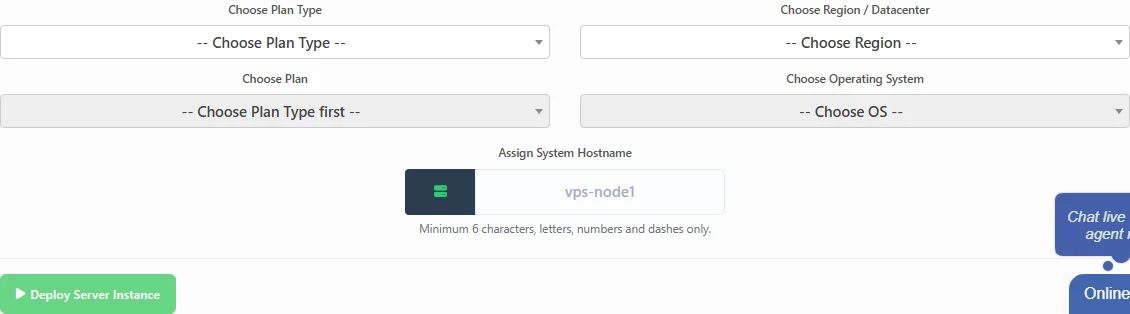
Open My ServicesUnder Cloud Compute Instances, click Deploy New VPS. Choose Discovery, then D2-2, an available region, a Linux image and a hostname. Finish with Deploy Server Instance. The form unlocks each choice in order.
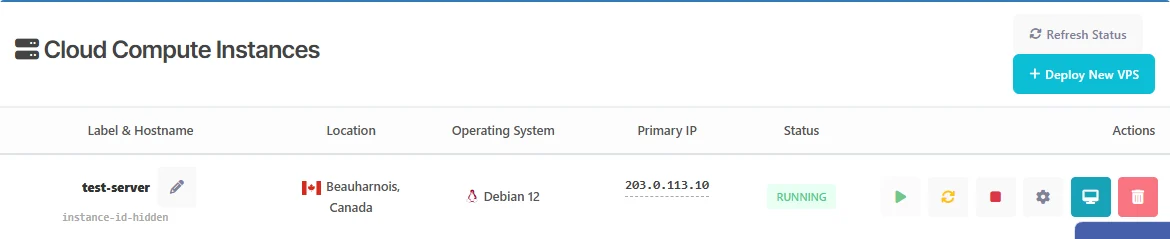
The new instance appears in Cloud Compute Instances. Use Refresh Status if needed and wait until its status is Running. Copy the Primary IP from that row. Only one instance can run at a time; the service shows the remaining deployment count.
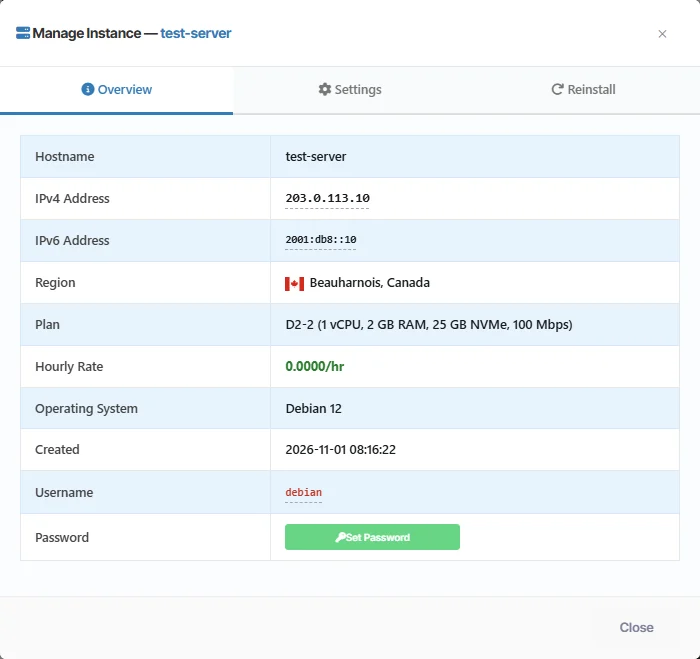
In the Actions column, choose the gear icon (Manage), then Overview. Copy the IPv4 address and the shown username. If the Password row says Set Password, set one there before connecting over SSH. Keep the password private.
GHOSTVPS / LINUX VPS
Focus on the checks that matter to your project.
Check how the chosen location works for your audience.
Use a small, disposable workload to explore the environment.
Explore how the service fits into your customer account.
An eligible customer can make up to three test deployments. Only one instance may be active at a time; Console shows the remaining count. Each free test service has a 30-minute timer that starts when the service activates.
Yes. Create an account and complete email verification before requesting a free test VPS.
The free trial supports Linux only. Review the Windows VPS service for paid Windows options and their licensing conditions.
The Free Test VPS area in Console shows the current test configuration and available locations.
The trial lets you test an available Linux configuration. Paid plans can have different CPU allocation, memory, storage and network terms; compare the actual plan before ordering.
GHOSTVPS / CLOUD VPS
Explore the paid VPS catalog and compare the exact resources, software options and locations for your intended service.