GHOSTVPS / Connect
Linux VPS commands you can use safely on day one
Navigate a Linux VPS, inspect files and resource usage, and read service warnings without changing a production configuration.
Updated · GhostVPS
Before you start
SSH access to a Linux VPS you administer. Commands shown use a normal shell and a disposable directory in your own home folder. The screenshots are recorded output from a GhostVPS Linux host, so values on your VPS will differ. Do not paste commands that contain example paths until you have checked them.
Find your current directory before changing files
Run pwd to see where you are, then ls -lah to inspect names, permissions and hidden files. cd changes your working directory. A relative path acts from that directory, so confirm pwd before copying or editing a file. The screenshot records these read-only commands on a Linux host.
Your VPS · Linux terminal
pwd
ls -lah
cd /tmp
pwd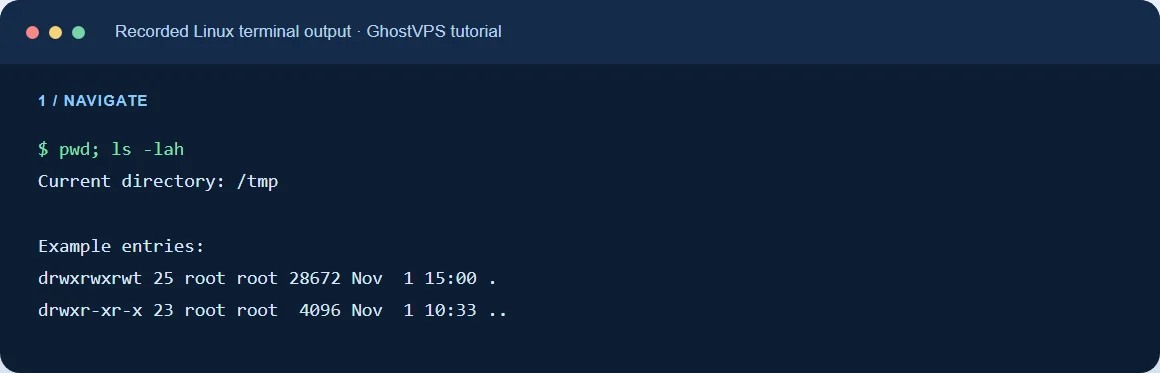
Create a small practice file and inspect it
Work in ~/tutorial-demo, a folder under your own home directory. mkdir creates the folder and stops with an error if it already exists; the chained printf therefore will not overwrite an earlier practice file. cat displays the two sample lines and wc -l counts them. For large logs, use less or tail rather than printing everything.
Your VPS · Linux terminal
mkdir ~/tutorial-demo && printf "first line\nsecond line\n" > ~/tutorial-demo/notes.txt
cat ~/tutorial-demo/notes.txt
wc -l ~/tutorial-demo/notes.txtCopy first, compare, then edit
cp –no-clobber avoids replacing an existing practice copy. diff prints nothing when the files are identical and exits successfully. ls -lah confirms both files exist. The commands never delete a production file. Before using mv, chmod or rm on a real service, check the path and take a backup. Never copy a command containing recursive deletion from an untrusted page.
Your VPS · Linux terminal
cp --no-clobber ~/tutorial-demo/notes.txt ~/tutorial-demo/notes-copy.txt
diff ~/tutorial-demo/notes.txt ~/tutorial-demo/notes-copy.txt
ls -lah ~/tutorial-demo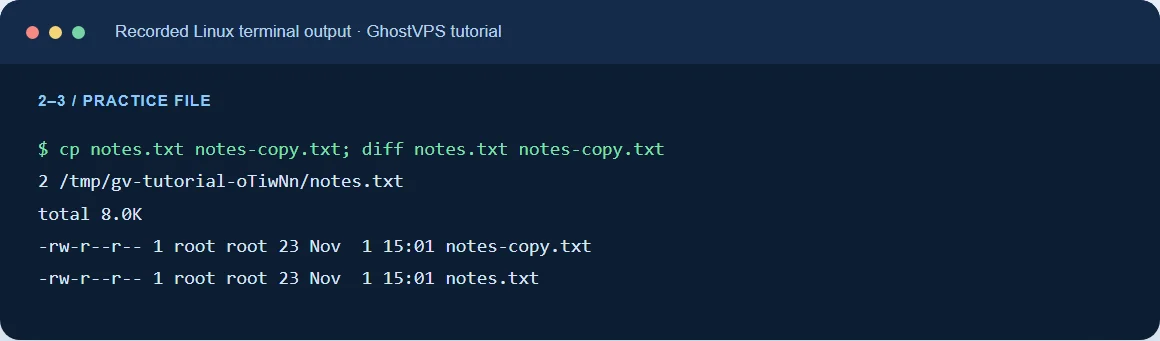
Check operating system, memory and disk
The OS release file identifies your distribution. free -h shows RAM and swap; df -h / shows the filesystem that contains the root directory. uptime gives load averages and how long the machine has been running. Compare these observations with your ordered plan, then investigate a sustained issue instead of drawing conclusions from one sample.
Your VPS · Linux terminal
cat /etc/os-release
free -h
df -h /
uptime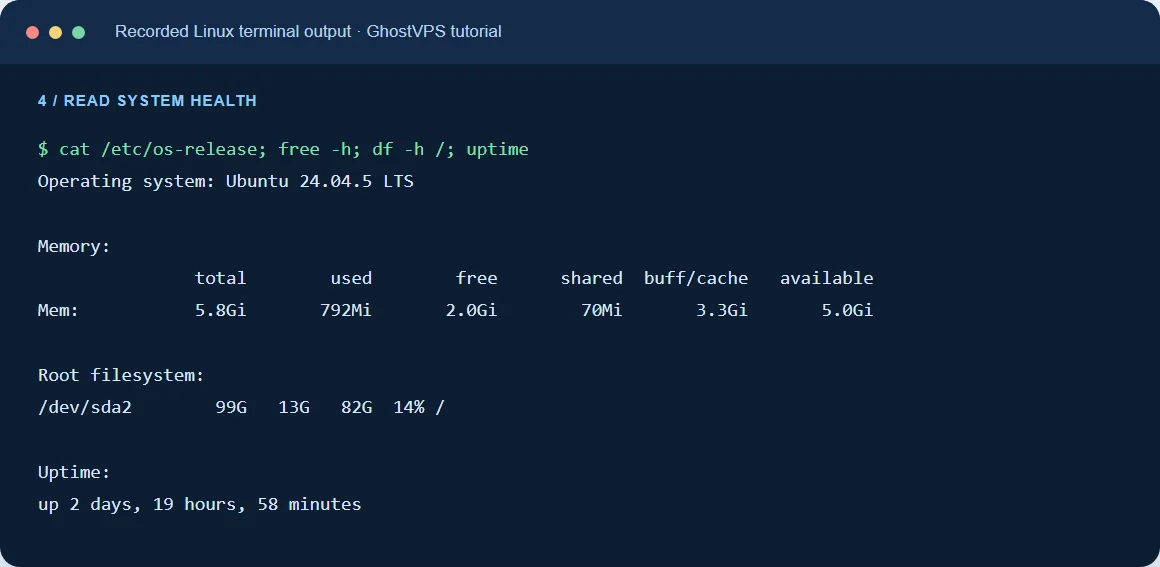
Read service warnings before changing settings
systemctl –failed lists units that are failed on systemd-based distributions. journalctl -b -p warning -n 20 shows recent warnings from the current boot. Logs can contain IP addresses, tokens or account names; redact them before sharing a screenshot or support ticket. If a service is failing, identify its name and review its logs before restarting it. Continue with our secure SSH and backup tutorials for changes that need a recovery path.
Your VPS · Linux terminal
systemctl --failed --no-pager
journalctl -b -p warning -n 20 --no-pager