GHOSTVPS / Operations
Recover SSH access after a key or configuration lockout
Distinguish authentication failure from network failure, preserve another access path and verify a controlled recovery.
Updated · GhostVPS
Before you start
A VPS you administer and a verified alternate access path, such as an existing management session or a rescue/console feature if your specific service offers one. The screenshots are from a separate SSH daemon bound to localhost:12222; no live customer login or GhostVPS Console recovery was tested. Do not change the production SSH daemon solely to follow the lab.
Classify the failure without guessing
Record the exact SSH error. A timeout or connection refused suggests a network, firewall, port or service problem; “Permission denied (publickey)” means the daemon was reached but authentication failed. Use verbose mode only with a trusted destination and do not paste logs containing usernames, host details or key paths into a public forum. Our lab reproduced a real public-key denial.
Your computer · terminal
ssh -vvv -o BatchMode=yes USER@SERVER_IP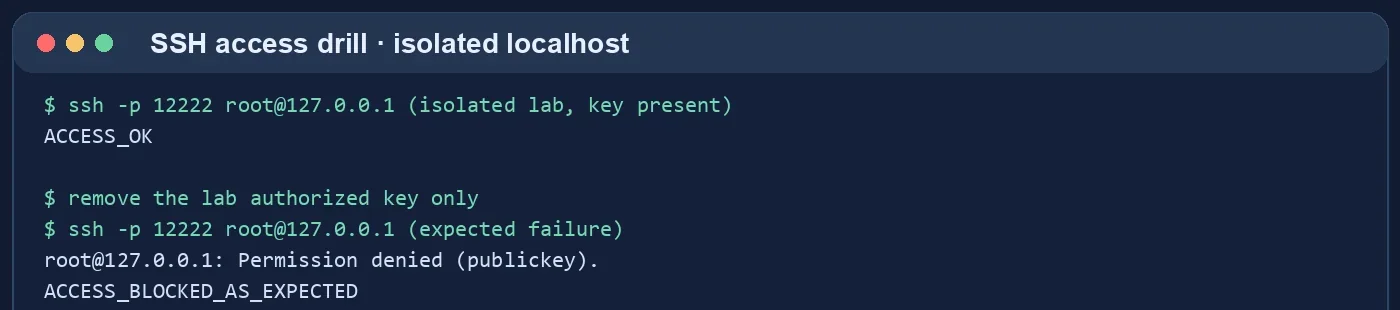
Keep any working session open
If an existing SSH or management shell still works, keep it open and use it to inspect the change. Do not close the last working session, disable another authentication method or restart sshd until a second connection succeeds. If there is no working session, check whether your exact service offers an out-of-band console or rescue mode; availability varies by provider, plan and location.
Validate the intended SSH configuration
From the alternate shell, run sshd -t before any reload and inspect effective options with sshd -T. Check the intended account, port and authorized-keys path. Our test used a temporary daemon and one disposable key; we removed its authorized key to create the failure. Never copy lab settings, including its loopback port or relaxed temporary file-path checks, into production.
Your VPS · Linux terminal
sudo /usr/sbin/sshd -t
sudo /usr/sbin/sshd -T | grep -E "^(pubkeyauthentication|passwordauthentication|authorizedkeysfile|permitrootlogin)"Restore only the confirmed credential or setting
Inspect ownership and permissions of the account home, .ssh directory and authorized_keys, then read relevant SSH logs. Restore the known-good public key or the specific configuration line you can verify; do not overwrite the entire file with an unknown sample. In the lab, the existing management shell restored the original key while the customer-facing SSH listener was untouched.
Your VPS · Linux terminal
sudo stat -c "%a %U %n" /home/USER /home/USER/.ssh /home/USER/.ssh/authorized_keys
sudo journalctl -u ssh --since "30 minutes ago" --no-pager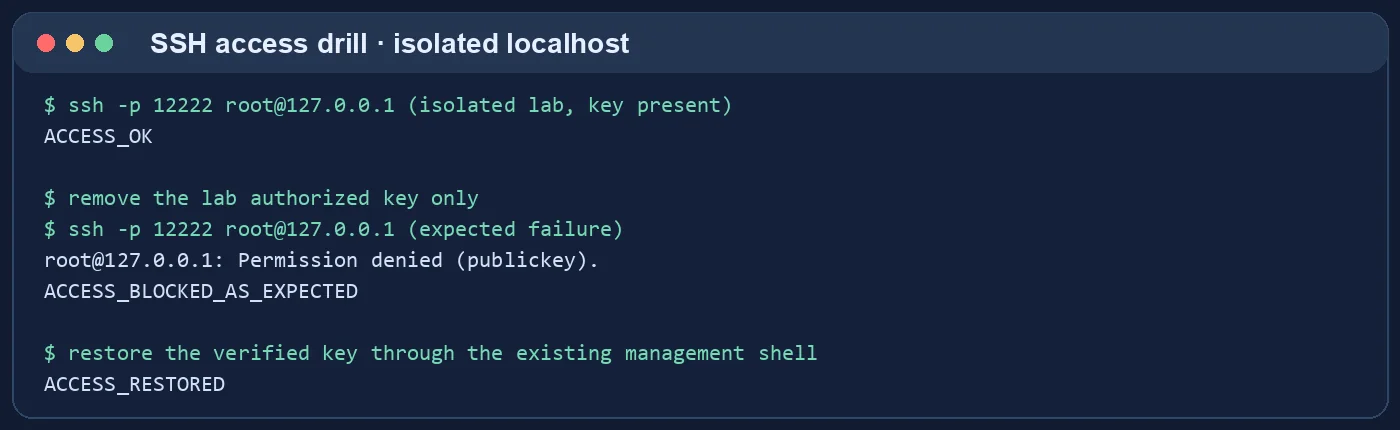
Test a new connection before closing the old one
Open a fresh SSH connection and run a harmless identity check. Only after it succeeds should you close the alternate shell. Record the cause and arrange a second recovery method for the future. The lab screenshot shows failure after key removal and success after restoration; it does not prove that any particular Console has a rescue feature.
Your computer · terminal
ssh -o BatchMode=yes USER@SERVER_IP "id && hostname"