
GHOSTVPS / Connect
SSH or Remote Desktop not connecting? Diagnose the cause
Use a short, safe decision path to distinguish a server that is not running from IP, port, firewall, username or credential problems.
Updated · GhostVPS
Before you start
Access to the service in Console and to your own computer terminal. Do not publish an IP, password, private key or verbose SSH log containing sensitive details. The Windows branch applies only to a Windows image with RDP enabled.
Check the correct service and server state
Open your service in Console and verify the server is running. Copy the current public IP and check whether the image is Linux or Windows. A service marked Active can still have a stopped or not-yet-deployed instance; do not diagnose the network until the instance itself is ready.

Test reachability to the correct port
From Windows PowerShell, replace the example IP with your server IP and test TCP 22 for SSH or TCP 3389 for default RDP. A failed TCP test points toward the route, provider rules, host firewall or listener. Ping alone is not decisive because ICMP can be blocked.
Your Windows PC · PowerShell
Test-NetConnection -ComputerName YOUR_SERVER_IP -Port 22
Test-NetConnection -ComputerName YOUR_SERVER_IP -Port 3389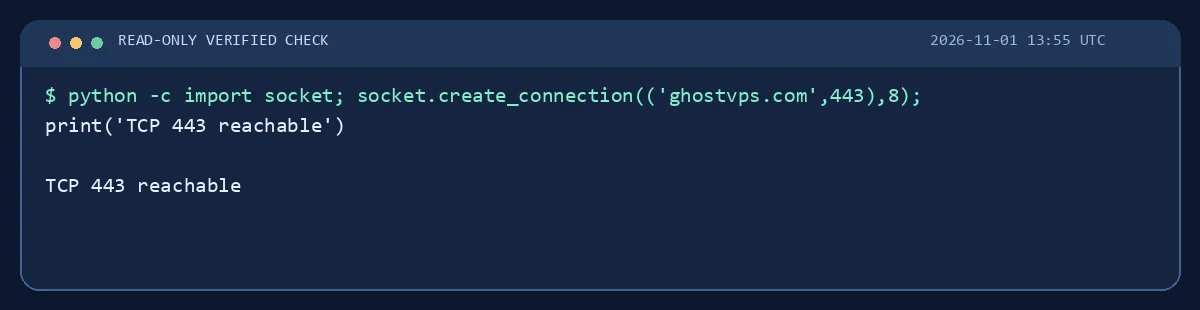
If TCP works, inspect the login error
For Linux, try the username and SSH port shown for your image. Permission denied usually concerns the username, key or password rather than reachability. For Windows, use the Remote Desktop client with the shown username; inspect the exact error. Do not repeatedly guess credentials.
Your computer · terminal
ssh -p 22 USERNAME@YOUR_SERVER_IP
If TCP fails, check the listener and firewall safely
Use a provider console or another authorized access path before changing firewall rules. On a Linux host, check whether sshd is listening and whether the firewall permits the actual SSH port. On Windows, verify Remote Desktop is enabled and the RDP firewall rule is allowed. Keep an existing session open while testing a change.
Escalate with the right evidence
Include service ID, server state, OS, time, tested public IP, tested port and exact error text in a support ticket. Mask credentials and private keys. If a firewall change locked you out, say so; support can then focus on recovery rather than treating it as a password problem.

