GHOSTVPS / Backups
Move WordPress from hosting to a VPS without losing a rollback path
A tested migration workflow for files, database, URL changes, pre-DNS checks and a safe rollback decision.
Updated · GhostVPS
Before you start
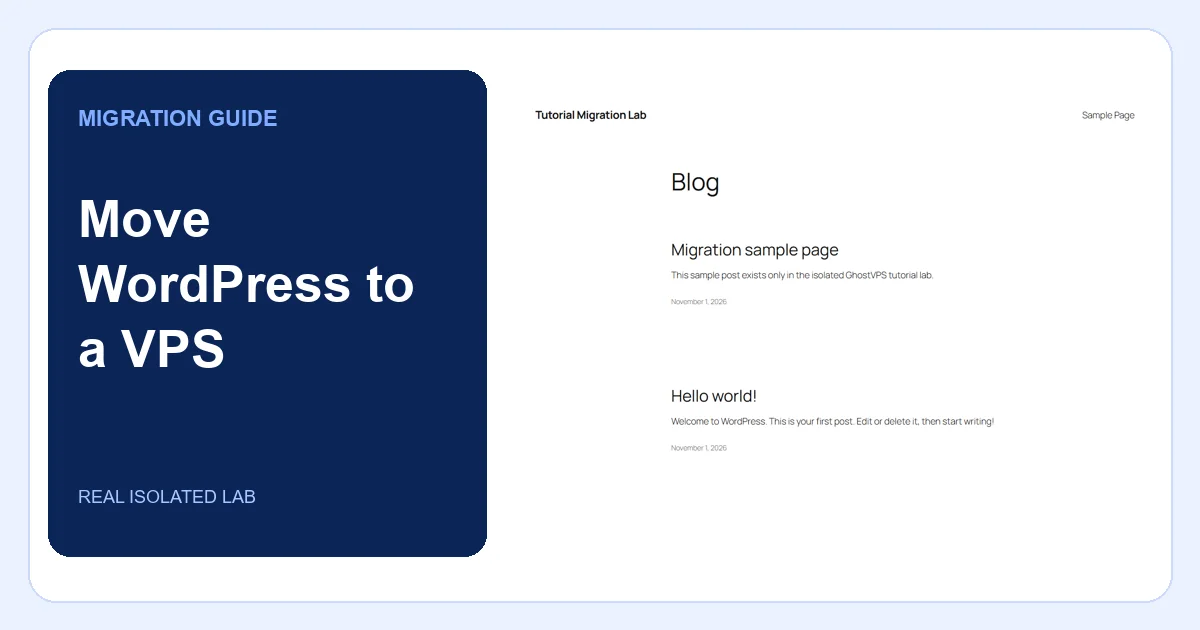
Administrator access to the source WordPress site and DNS, a separate VPS with a working web/PHP/database stack, WP-CLI, enough disk space, and a quiet migration window. The screenshots show an isolated WordPress lab, not a customer site. Do not run placeholder commands unchanged.
Inventory the source and set a rollback point
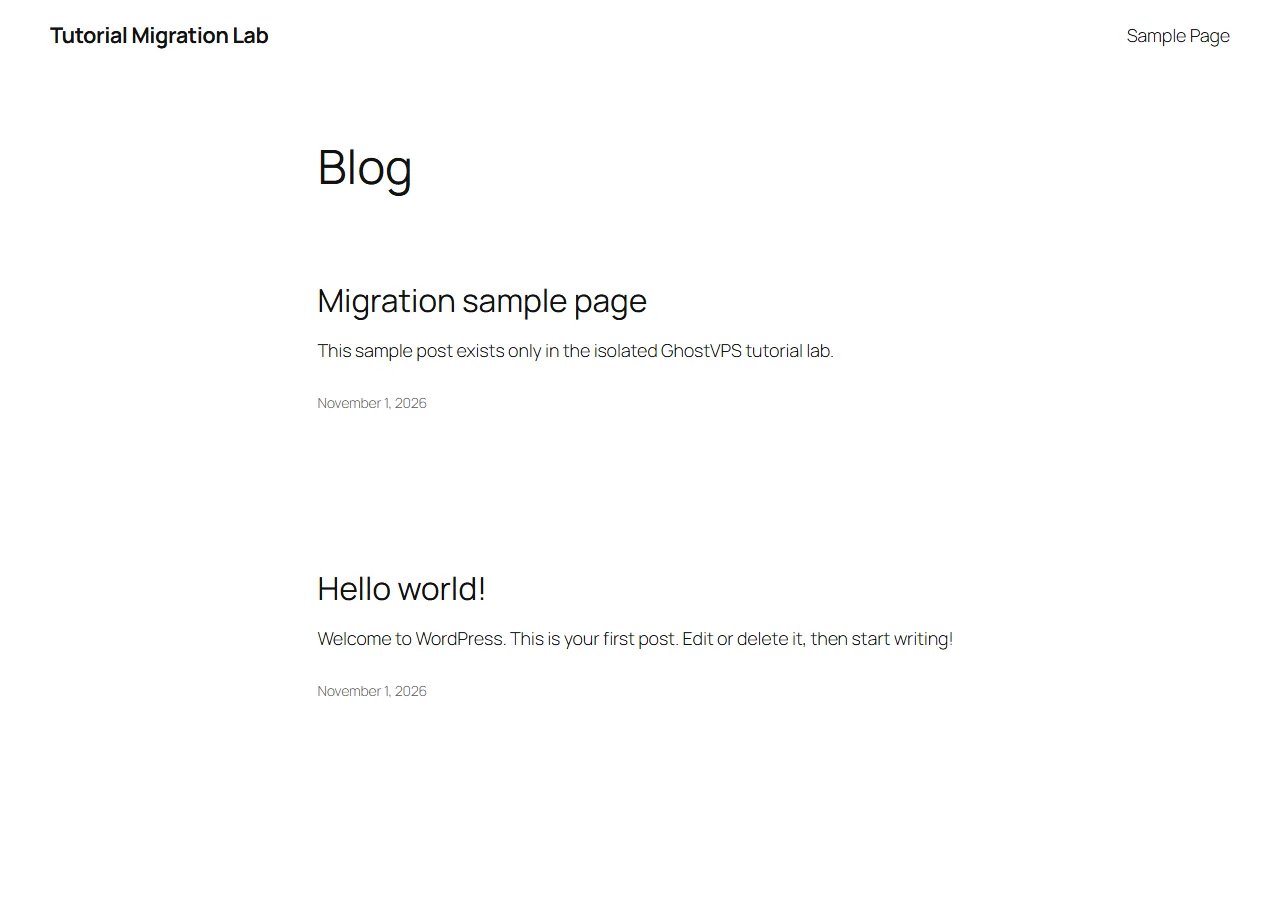
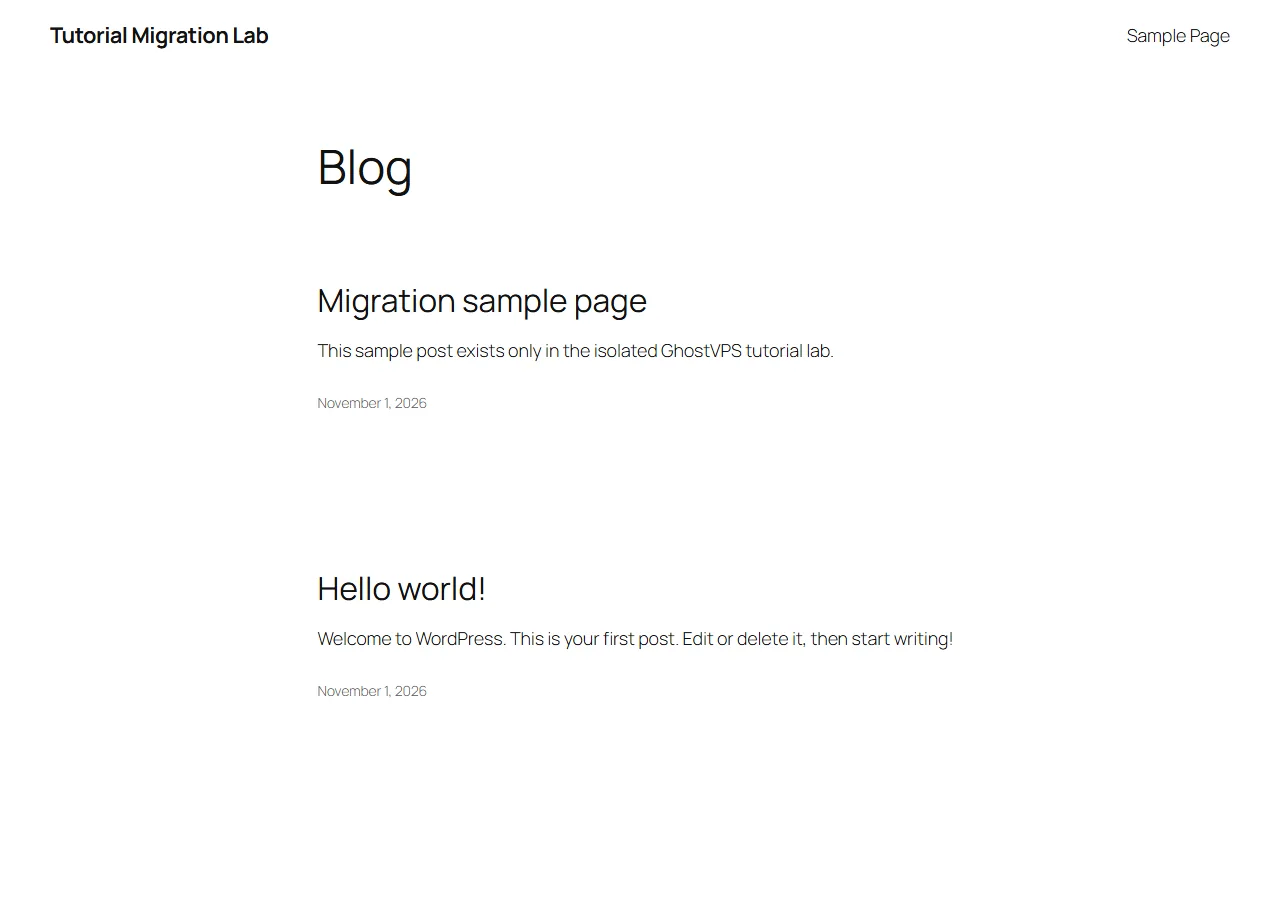
Record the current domain, PHP version, database version, plugins, upload size, mail delivery and DNS TTL. Pause content changes during the final copy. Keep the old hosting active until the new site has passed checks and DNS has settled. In our lab, the source page and sample post were captured before any migration.
Export both database and files
A WordPress copy needs the database and wp-content, including uploads, plugins and themes. Export from a consistent source state. Store the archive outside the public web root, restrict permissions, and compute checksums. Keep a second independent copy before changing DNS. The example paths and URLs below are placeholders, not our lab credentials.
Your VPS · Linux terminal
wp db export /secure-backups/pre-migration.sql
tar -czf /secure-backups/wp-content.tar.gz -C /var/www/example-site wp-content
sha256sum /secure-backups/pre-migration.sql /secure-backups/wp-content.tar.gzPrepare the VPS and import into a new database
Install a compatible web/PHP/database stack and a fresh WordPress copy on the destination. Create a dedicated database user with only the required database privileges. Import the SQL dump, copy wp-content, set ownership for the web service, and place database credentials only in wp-config.php with restricted permissions. Our lab copied content into an isolated target and confirmed the published post survived.
Update URLs safely and preview before DNS
If the site URL changes, use WP-CLI search-replace so serialized options are handled; inspect a dry run first and skip the guid column. When the domain stays the same, avoid needless URL replacement. Preview the target without changing public DNS, using a local hosts override or an equivalent trusted test path. Check home, posts, images, forms, login, redirects, HTTPS, robots and canonical URLs before switching traffic.
Your VPS · Linux terminal
wp search-replace "https://old.example" "https://new.example" --skip-columns=guid --dry-run
wp search-replace "https://old.example" "https://new.example" --skip-columns=guidCut over, watch, and know when to roll back
Take a final database dump after the edit freeze, repeat changed uploads, and switch DNS only after preflight passes. Watch error logs and form delivery. If essential pages or orders fail, revert DNS to the old host while it is still intact, restore the final source snapshot there if needed, and investigate away from live traffic. Do not delete the old hosting immediately; record who can authorize rollback.