GHOSTVPS / Operations
Plan and verify Ubuntu VPS updates without an avoidable outage
Inspect pending packages, preview changes, protect a rollback point and check services after a controlled update.
Updated · GhostVPS
Before you start
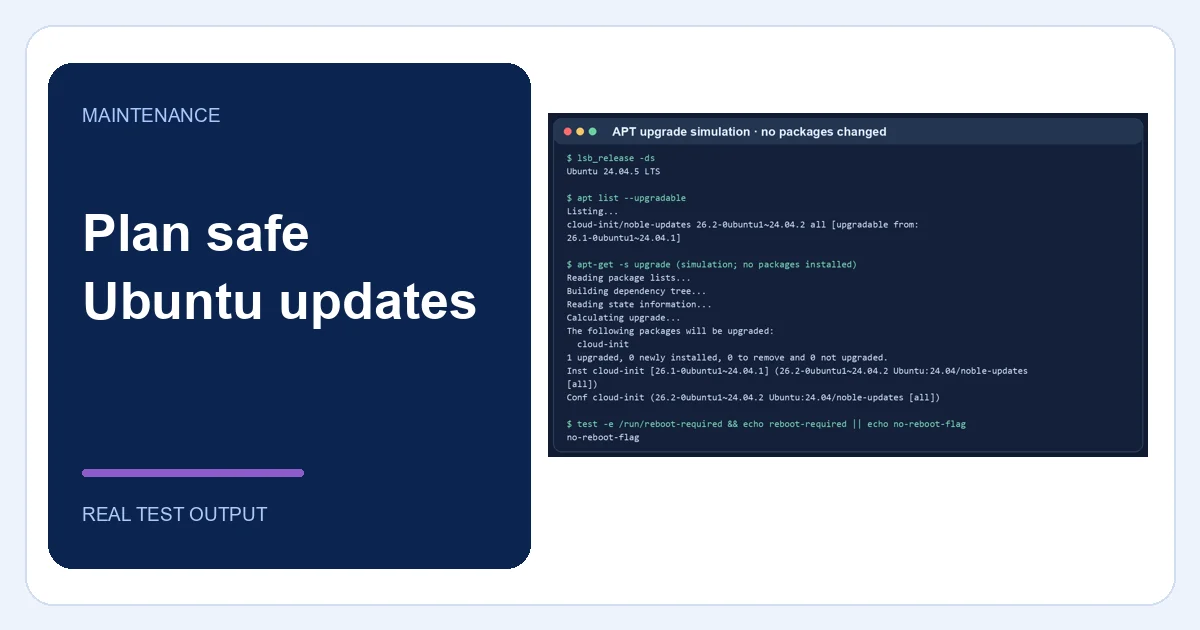
A supported Ubuntu VPS you administer, an independent working backup, a maintenance window and a second access path. The screenshots show a real read-only APT simulation on Ubuntu 24.04; this lab did not install updates on a production site. Use your own package list, not the example versions.
Record the current system and pending packages
Confirm the Ubuntu release and list upgradable packages. Note the services your application depends on and test their current health. Our lab showed one pending cloud-init update, but this is only an example of how to read the list. A release upgrade is a separate procedure from regular package updates.
Your VPS · Linux terminal
lsb_release -ds
apt list --upgradable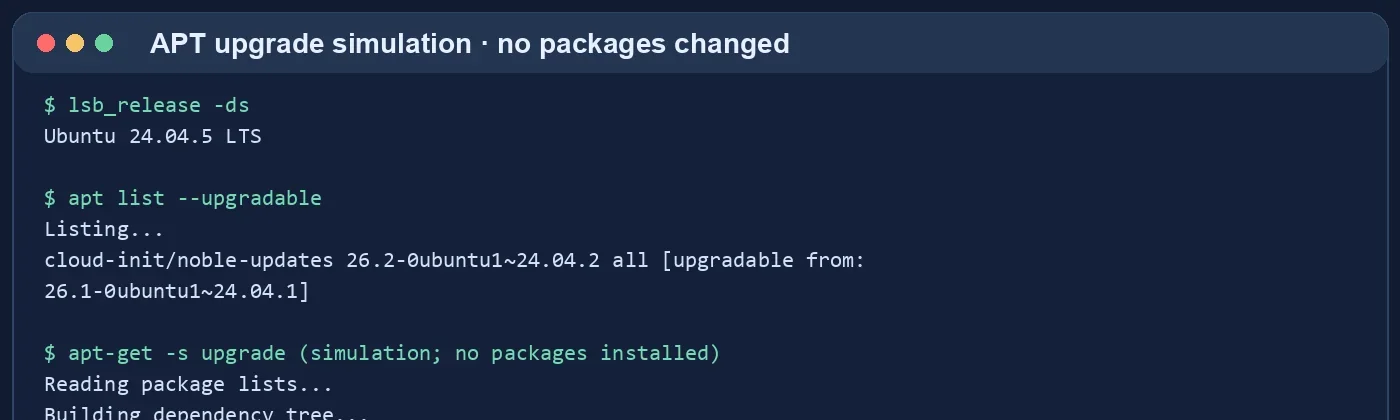
Refresh metadata and simulate the change
Run apt update, then preview the upgrade with apt-get -s upgrade. Read the package summary and any removals or held packages before proceeding. The screenshot is a real simulation: it changed no packages. Ubuntu may phase some updates; do not force a held update solely to make the list empty.
Your VPS · Linux terminal
sudo apt update
apt-get -s upgrade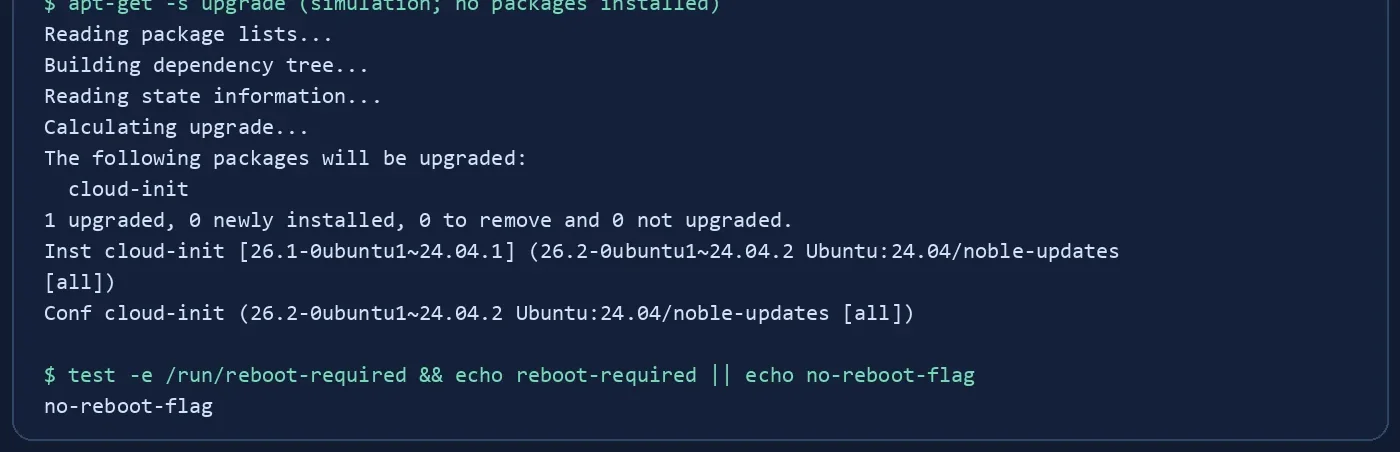
Secure a rollback point and an access path
Verify a recent off-server backup and, where available, a tested snapshot. Keep a second administrator session or console access open, especially when SSH, firewall or networking packages are involved. Plan an application-specific rollback; an APT downgrade is not a substitute for restoring a known-good state. Do not treat a snapshot as tested until you have restored it.
Apply during a maintenance window
On your own VPS, run apt upgrade only after reviewing the preview. Watch prompts about changed configuration files, note packages and errors, and avoid closing the session mid-upgrade. Check the reboot-required flag afterward and schedule a controlled reboot if necessary. We did not execute this mutating step on the production GhostVPS host for the tutorial.
Your VPS · Linux terminal
sudo apt upgrade
test -e /run/reboot-required && echo "Reboot needed" || echo "No reboot flag"Verify the service and document the result
After the update or reboot, check SSH, web endpoints, application logs and failed systemd units. Compare the original package list and record any remaining phased packages. If a critical service fails, use the verified rollback path or restore plan rather than repeatedly changing packages without a diagnosis.
Your VPS · Linux terminal
systemctl --failed --no-pager
apt list --upgradable