How to design and test a VPS backup and restore plan
Set recovery targets, inventory files and databases, keep independent versions and prove your backup with an isolated restore drill.
Updated

A backup is useful only when you can restore the data you need within the time your project can tolerate. Copying files to another folder is a start, but it does not prove that a database, application settings and credentials can be recovered together. This guide helps you design a VPS backup plan and test it.
1. Set loss and recovery targets
Ask two questions: how much recent data can you afford to lose, and how long can the service be unavailable? These are your recovery point and recovery time targets. A site that changes daily might accept a daily copy; a busy order system may not. Write the targets down before choosing a schedule. More frequent backups may need more storage and more monitoring.
2. Inventory everything needed for a restore
List application files, databases, uploads, configuration, TLS material, deployment instructions and any encryption keys. Separate secrets from the backup archive and protect access to both. For a WordPress site, a database dump without wp-content/uploads loses media; files without a matching database may lose posts and settings. For a service such as n8n, credentials may depend on an encryption key stored outside the database.
| Mechanism | Good for | Important limit |
|---|---|---|
| File sync | Keeping another directory current | Deletes and corruption can be copied too; add versions |
| Snapshot | Fast rollback to a point in time | May share the same failure domain; check consistency |
| Independent backup | Recovering after deletion or server loss | Must be scheduled, protected and restore-tested |
3. Keep a copy away from the VPS
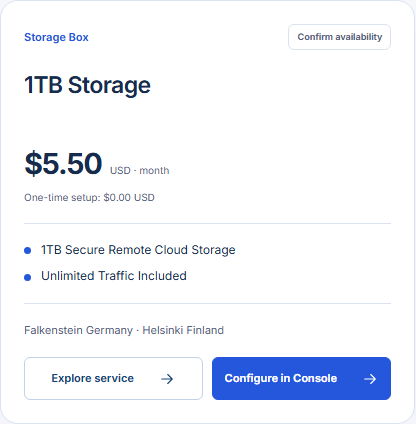
Choose a destination with enough capacity for multiple retained versions. A GhostVPS Storage Box can hold files or backup archives independently of the source VPS. Confirm the access protocol, capacity, price and selected plan in Console. Use a backup tool that can create dated, restorable copies; if you use a simple file sync, add versioning so a mistaken deletion does not erase the only good copy.
4. Verify the backup job, not just its schedule
After every run, check its exit status, age and archive size. Alert on a missing run, unusually small archive or failed upload. Encrypt sensitive data before or during transfer, restrict credentials, and keep several dated versions so an accidental deletion does not immediately overwrite the only good copy. Record the restoration commands in a place you can access without the failed server.
5. Run an isolated restore drill
Choose one recent backup and restore it to a separate test environment. Recreate the database, files and application configuration, then check login, key pages, uploaded media and background jobs. Measure how long the restore actually takes and note any missing secrets or dependencies. Do not use a production domain or expose customer data during the drill. If the result misses your targets, change the backup schedule or process before calling it complete.
Review the GhostVPS practical tutorials for hands-on transfer examples, then confirm the selected Storage Box in the Storage Box category in Console and any VPS backup options on the specific VPS plan. A tested restore is the evidence that the plan works.