Can’t connect to your VPS? A safe SSH and RDP troubleshooting guide
Find out whether DNS, a blocked port, authentication or the operating system is stopping your connection, then recover safely.
Updated

When you cannot reach a VPS, a password reset is often the wrong first move. Find out whether the failure is DNS, the network path, the service port, authentication, or the operating system. This guide gives Linux SSH and Windows Remote Desktop users a safe order of checks. It assumes you own or administer the server.
1. Record the exact error and target
Write down the time, server or domain, port, client network and exact error text. Check the IP and operating system shown for your own service in Console. If you connect by domain, compare its DNS answer with the current service IP; a stale A or AAAA record can send you to the wrong machine. Never post the server password or a full diagnostic log in a public forum.
2. Test the port from your computer
On Windows PowerShell, run the appropriate command with your own server name and the port configured for that service:
Test-NetConnection YOUR-SERVER -Port 22
Test-NetConnection YOUR-SERVER -Port 3389
Port 22 is the common SSH default; 3389 is the common RDP default. Your plan or firewall may use other ports. TcpTestSucceeded: True means a TCP connection to that port succeeded from this client, not that login will succeed. False does not by itself identify whether the server, firewall or network route blocked it. Microsoft’s Test-NetConnection documentation describes the port test.
3. Interpret the error before changing settings
| What you see | What it suggests | Next safe check |
|---|---|---|
| Timeout | Traffic may be dropped or the host unreachable | Check service status and firewall in Console or a provider console; compare another trusted network |
| Connection refused | Host answered but the port may have no listener | Check the service and actual listening port from console access |
| Permission denied / login failed | TCP path works; authentication failed | Check username, key, password and account policy without repeated guesses |
| Host key changed | Identity differs from the saved record | Verify the new fingerprint through an independent trusted channel before accepting it |
| RDP opens then disconnects | Network path may work; session or OS could be at fault | Check Windows events, account access and system health |
For SSH, ssh -v user@YOUR-SERVER shows where negotiation stops; redact usernames, IPs and key paths before sharing logs. OpenSSH documents the verbose flag. Do not remove a changed host key merely to silence the warning without verifying the server identity.
4. Use console access to inspect the server side
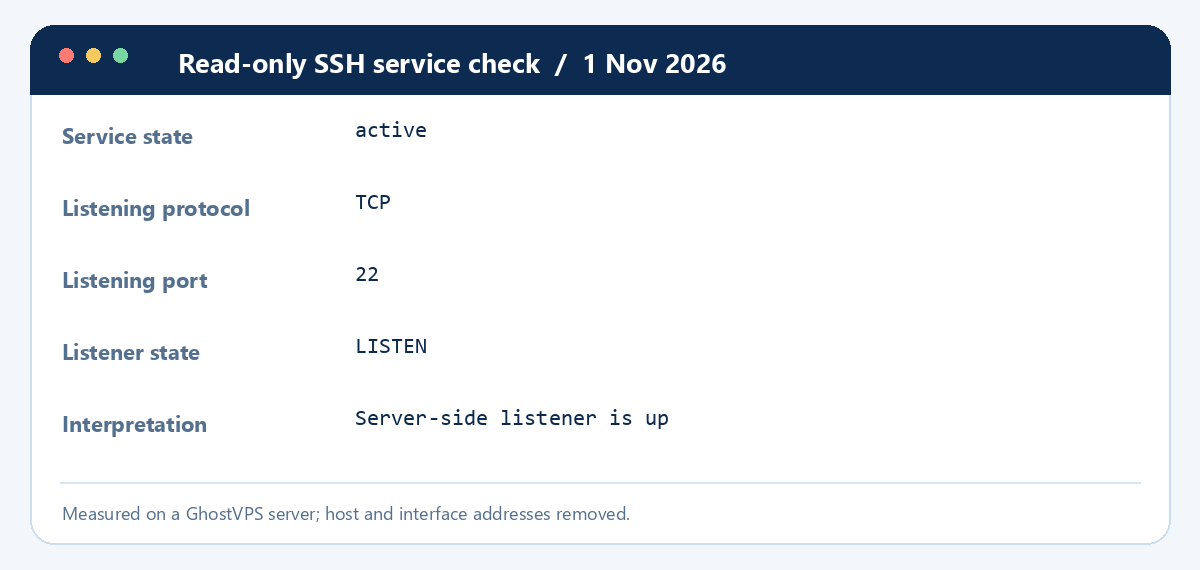
If your plan provides a browser console or rescue access, check whether the machine is running, whether the correct OS image booted, and whether SSH or Remote Desktop is listening. On a Linux system with systemd, systemctl status ssh and ss -ltn are read-only starting points; service names can vary by distribution. On Windows, inspect the Remote Desktop setting, Windows Firewall and Event Viewer. A firewall rule may differ between provider controls and the OS itself; check both layers where applicable. Do not disable the firewall broadly or change SSH settings before confirming you have a recovery path.
5. Recover carefully and verify
Make one change at a time, keep an existing working session open if you have one, and retest from the original client. If a reboot or rescue mode is required, record the current state and confirm backup availability first. If you still cannot connect, open a support ticket with the service ID, timestamp, error text, client network and steps already tried; send secrets only through an approved secure channel. After access returns, follow the Windows security checklist or the relevant connection tutorial and document the actual cause.
Reviewed 1 November 2026. The screenshots show a real diagnostic check, with identifying details removed; controls available in Console depend on the selected plan.