Windows VPS use cases and how much CPU, RAM and disk to start with
Compare Windows VPS plans by application, remote desktop use, memory, disk and the exact available Windows image. Includes a practical sizing worksheet.
Updated
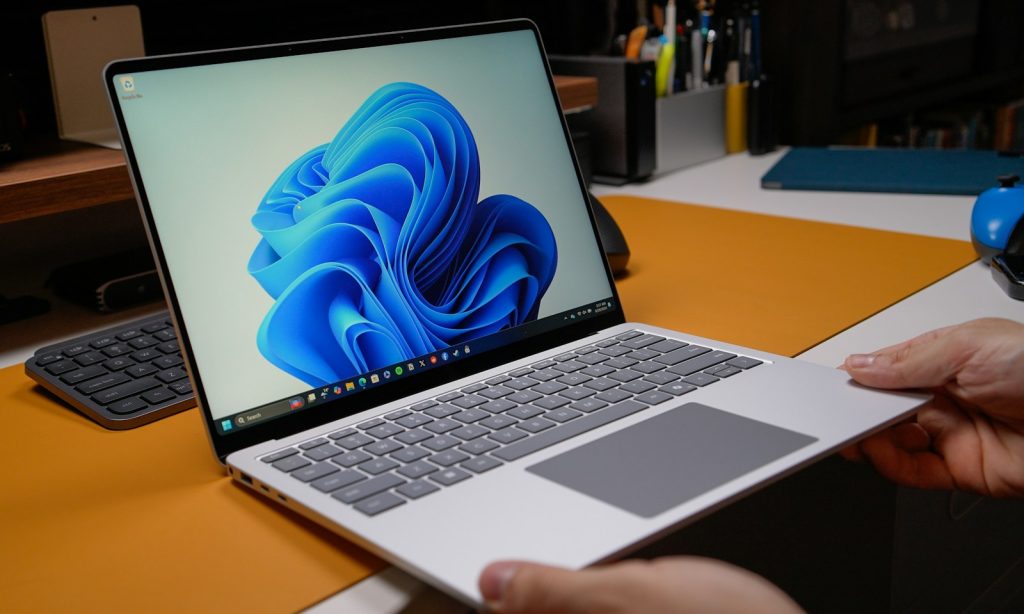
A Windows VPS is useful when software requires Windows or when a remote desktop is part of the workflow. It is not automatically the best choice for every website or task. The right plan depends on the application, simultaneous users, disk growth and how the server will be administered. This guide turns those requirements into a practical first shortlist.
When a Windows VPS makes sense
- Remote administration or desktop software: run an application that needs a Windows GUI and access it through Remote Desktop.
- Windows-only server software: host a service whose vendor supports Windows Server and verify its own CPU, RAM and database requirements.
- Testing: reproduce a Windows environment for a development or compatibility check without relying on a personal computer.
If the software runs well on Linux and you do not need Windows, compare Linux VPS plans too. An OS preference alone should not replace checking the software’s actual support matrix.
Choose starting resources, then measure
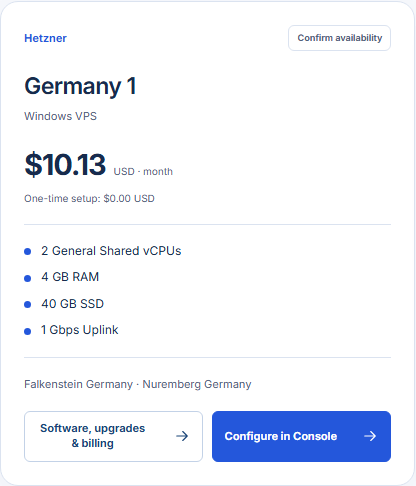
For a light single-user remote desktop, a planning starting point is 2 vCPUs, 4 GB RAM and enough disk for Windows, updates and the application—often 60 GB or more. For several applications or a busy database, start your comparison around 4 vCPUs and 8 GB RAM, then use the vendor’s sizing guidance and measured peaks. These are planning examples, not performance guarantees or universal minimums.
Microsoft’s Windows Server hardware requirements list 32 GB as an absolute installation minimum for storage, not a comfortable production disk size. Leave room for updates, page files, logs and backups. The needed RAM and CPU can increase sharply with the application and number of sessions.
| Workload | First comparison | What to measure after launch |
|---|---|---|
| One remote desktop user | 2 vCPU / 4 GB RAM planning point | Idle RAM, login time, app launch and disk free space |
| Several desktop apps or users | 4 vCPU / 8 GB RAM planning point | Peak memory, CPU queue and simultaneous session response |
| Database or vendor software | Vendor requirement first | Application counters, disk I/O and memory at real load |
Compare the exact Windows image and plan
The GhostVPS Windows VPS page lists configurations and locations. Windows Server 2019, 2022 and 2025, and Windows 10 or 11, are offered where the particular plan supports them. Check the exact image, location, CPU allocation, RAM, disk and final total in Console. Do not assume that every listed plan offers every Windows version or that an image has the same licensing terms across services.
Check the first session before moving work
After provisioning, connect through RDP using the credentials and endpoint supplied in Console. Verify the server identity, change temporary credentials as instructed, install updates and enable appropriate access restrictions. In Windows Task Manager, check CPU, memory and disk while opening the real application; repeat under a representative load. Keep RDP exposure limited to trusted sources when possible and use a separate backup for important data.
For the connection steps, use the existing GhostVPS tutorials. If a Windows image is missing from a shortlisted plan, remove that plan from the shortlist rather than ordering and hoping to change it later. The server finder can help narrow OS, location and budget before you compare cards. The Windows VPS category in Console shows the final options and order.