How much GPU VRAM does an AI model need? A repeatable test
Record model revision, precision, context, batch size and GPU memory use. Learn how to test real peak VRAM without relying on unsupported estimates.
Updated
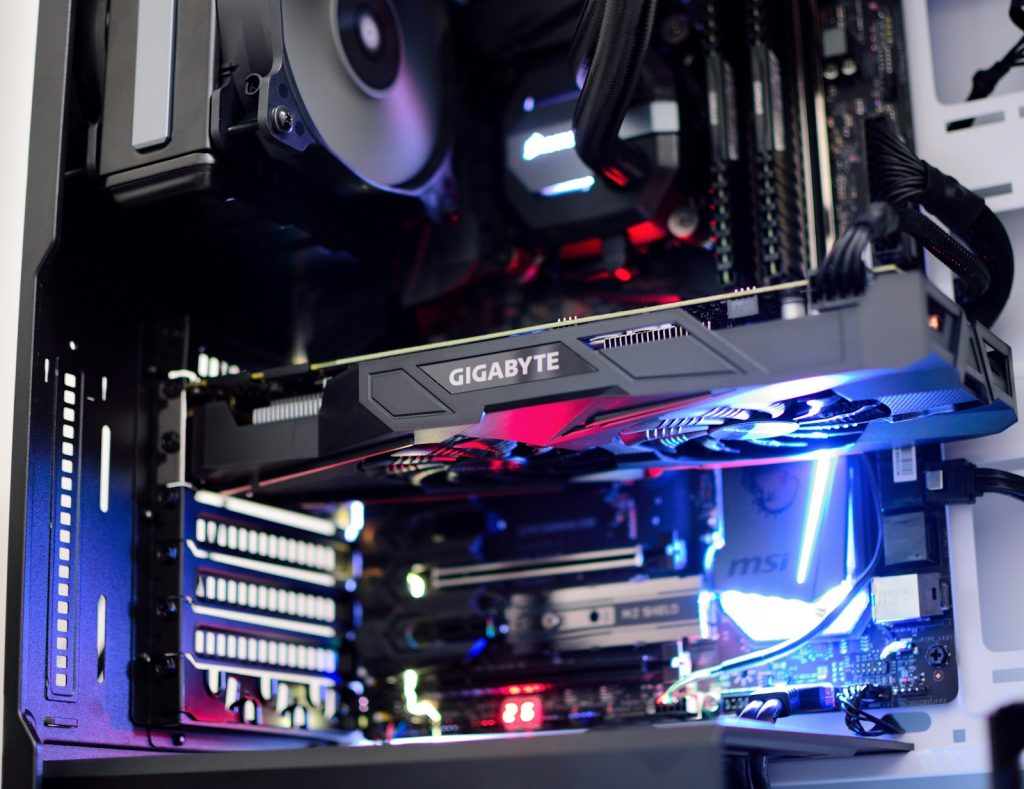
“How much VRAM does this model need?” has no single answer without the model, precision, context length, batch size and runtime. A model that loads may still run out of memory on the first real request. This guide shows how to choose an initial GPU and run a repeatable VRAM test instead of trusting a generic model-size chart.
1. Record the exact workload
Write down the model name and revision, inference or training, quantization or precision, context length, batch size, number of simultaneous requests and runtime version. These settings belong next to every measured VRAM number. Hugging Face’s model-loading documentation explains why weight format and device placement matter. Training generally needs memory beyond inference because optimizer state, gradients and activations are also held.
A rough weight-only calculation can help reject an obviously undersized GPU: a seven-billion-parameter model at 16-bit precision has about 14 GB of raw weights in decimal units. That is not a total VRAM requirement. Runtime overhead, activations, caches and fragmentation need additional space. Quantized weight size alone is likewise insufficient for a purchasing decision.
2. Shortlist the GPUs available for the service
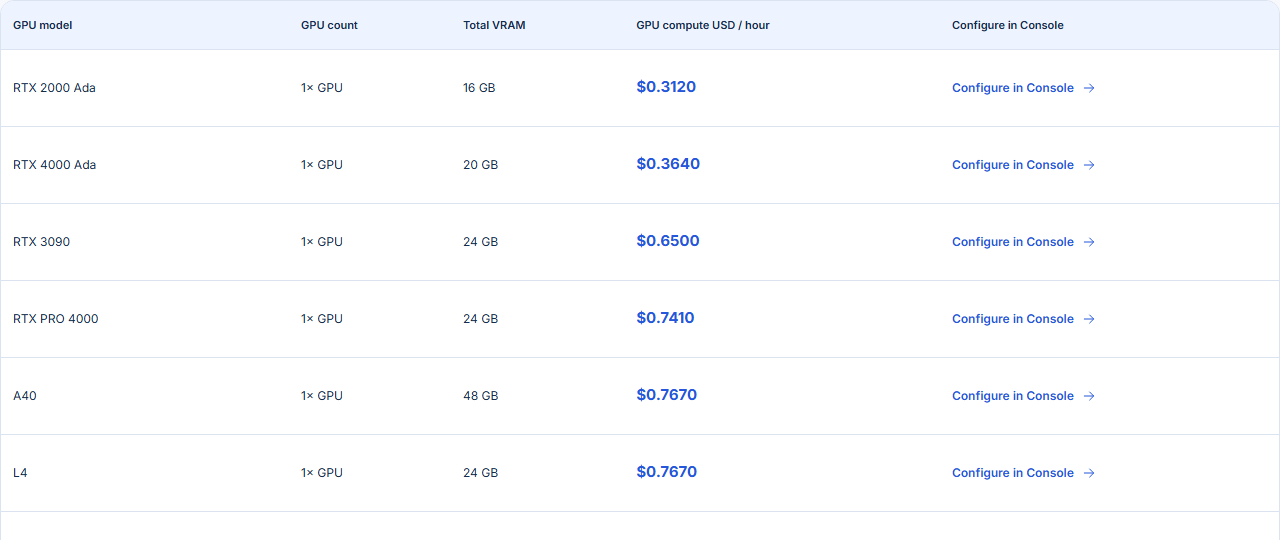
The GhostVPS GPU Cloud catalog lists GPU model, GPU count, total advertised VRAM and an hourly compute rate. Check the exact available configuration in Console. If a plan has multiple GPUs, do not assume one model instance can use the sum of their VRAM without a runtime that supports distributing the workload.
3. Measure one fixed test case
On a GPU you are authorized to use, record the driver, GPU model and free memory with nvidia-smi. Start the chosen runtime, load the exact model revision, then send a representative prompt or job at your intended context and batch size. Record VRAM after model load and at the peak of the first and subsequent requests. Repeat after warm-up; some runtimes allocate caches lazily. NVIDIA’s nvidia-smi documentation describes the reported device memory fields and their limits.
| Test field | Write down |
|---|---|
| Software | Model revision, runtime version, precision / quantization |
| Request | Input length, output limit, batch size, concurrent requests |
| GPU | Exact model, count, total and available VRAM before test |
| Result | Peak VRAM, latency or throughput, failures and OOM messages |
Run at least one workload representative of a busy period, not only a tiny sample prompt. If the process fails with out-of-memory, reduce the batch or context, select a supported quantization, or compare a larger GPU. Leave headroom for concurrent requests and runtime variation; a test that ends with almost no free memory is fragile.
4. Keep the VRAM test and cost estimate separate
Once a GPU passes the workload test, estimate expected active hours, stopped-server charges and storage using the actual service rules. The compute number in a table is not always the full invoice. Do not use the regular Hourly Cloud rates as a substitute for GPU Cloud billing. Review the hourly cost worksheet for the general method, then confirm the GPU-specific total in the Hourly Services category in Console.
This article deliberately does not claim a GhostVPS benchmark for a named model: we have not published a repeatable run with a fixed model revision and settings. Use the test record above to produce one before relying on a VRAM recommendation.