Hourly vs monthly VPS: how to choose and estimate the real cost
Compare hourly and monthly VPS plans using expected running hours, stopped resources, storage, setup fees and actual Console options. Includes a cost worksheet and real plan screenshots.
Updated

Hourly and monthly VPS plans solve different scheduling problems. A server used for a short experiment may suit hourly billing; a service that must stay available every day is often easier to budget monthly. The right choice depends on your expected usage, what is billed while the server is stopped, and the exact configuration you select. Here is a practical way to compare them without mistaking initial account credit for an hourly server price.
1. Write down when the server will actually be needed
Estimate your next 30 days in hours. Record active hours, stopped but retained hours, and whether the service must be reachable outside working time. For example, a build machine used five hours on two days each week has a different schedule from a website that must answer requests at midnight. If you cannot predict the schedule, start with a short period of measured use and review the bill before committing to a long-running setup.
Also identify the hard requirements: Linux or Windows, location, minimum RAM, disk space, image availability and any data that must persist between sessions. A cheaper hourly machine is not a useful alternative if the required Windows image or region is unavailable for that configuration.
2. Compare the actual rate and monthly plan, not the entry payment
The Hourly Cloud page shows a table of instance configurations and listed USD hourly rates. The initial payment displayed in Console is cloud credit; it is not the price per hour of every instance. Select an instance family and read the rate for the exact machine you plan to use. Then open Cloud VPS and find a monthly plan that meets the same OS, memory, storage and location requirements.
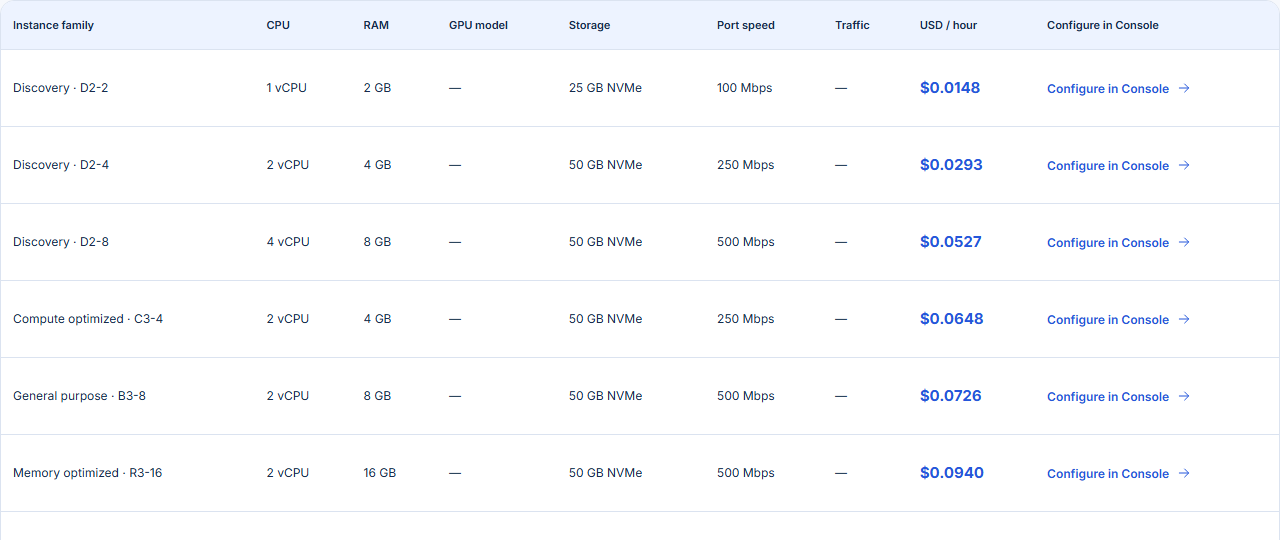
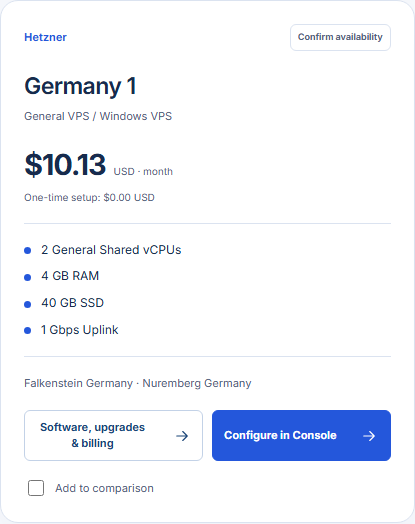
3. Build a cost estimate you can revise
Use a worksheet with these rows: active compute, stopped or retained resources, storage and other options, and one-time charges. Multiply each applicable rate by its corresponding usage, then add the results. For a monthly plan, compare the selected billing-period price plus setup fees and paid options. Do not assume that pressing “power off” stops every charge; retained disks and stopped instances can still cost money. The exact rules for a selected hourly configuration must be confirmed in Console.
| Cost item | Hourly estimate | Monthly estimate |
|---|---|---|
| Running server | Selected hourly rate × billable running time | Selected plan price for billing period |
| Stopped instance or retained storage | Add any applicable charges under the selected service rules | Check any paid storage or backup options |
| Setup, licenses and extras | Add applicable charges shown in Console | Add setup fee and chosen paid options |
| Total | Sum every applicable hourly item | Sum plan, setup and options |
Illustration only: if a hypothetical machine costs $0.10 per billable running hour, 100 running hours would be $10 in compute charges. That is not a GhostVPS quote. Any stopped-time, retained storage or other charges would increase the total. Use the current configuration and billing rules in Console for a real comparison.
4. Test the choice against your workload
- Temporary development environment: hourly billing may fit if you can reliably delete resources you no longer need. Check the effect of stopping versus deleting and how you will preserve necessary data.
- Always-on website or application: compare a monthly VPS first. It gives you a recurring price to budget against, but the right plan still depends on resource usage and any setup fee.
- Uncertain project with occasional spikes: calculate a low-use and a high-use month. If the hourly estimate changes sharply, decide what monthly cost you can tolerate before choosing.
- GPU or model work: use the separate GPU Cloud service comparison. GPU, stopped-server and storage charges need their own calculation; the regular Hourly Cloud table is not a GPU quote for that service.
5. Check the Windows question before adding credit
Windows Server is selectable on hourly configurations where Console offers that image. GhostVPS does not add a separate Windows license fee to the displayed hourly instance rate. Image availability can vary by selected instance and region, so verify the Windows option on the exact configuration before funding the service. If you need a server that runs continuously, also compare the monthly Windows VPS plans.
6. Make a decision with the final configuration
Save the exact hourly instance name and monthly plan name, location, OS and selected options. Recheck both configurations in Console, including any stopped-time or storage terms for hourly usage and setup fees for monthly service. Choose the option whose total expected cost and operating workflow fit your project; a lower headline rate alone is not enough.
If you still need help estimating a particular workload, send the two exact plan names, expected active hours and retained storage needs through contact. For a broader server shortlist, use the server category guide.