WordPress hosting or a VPS with WordPress installed: which fits?
Compare maintenance responsibility, server control, plugin requirements, backups and migration steps before choosing WordPress hosting or a VPS image.
Updated

Both web hosting and a VPS with WordPress preinstalled can run a WordPress site. The main difference is who controls and maintains the server environment. Choose with your maintenance capacity, plugin needs, traffic patterns and backup plan in mind—not just the plan’s starting price.
Know what you are buying
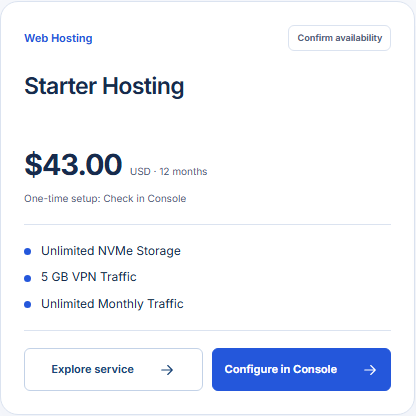
GhostVPS Web Hosting is a hosting product with a defined account environment. You manage the WordPress site, content, themes and plugins within the hosting controls offered by that plan. A WordPress application image on a VPS starts you with WordPress installed on a virtual server; you still need to review the server’s OS, updates, web stack, security, backups and monitoring. A preinstalled application does not by itself mean managed WordPress operations.
| Question | Web Hosting | WordPress on a VPS |
|---|---|---|
| Need root access or custom server software? | Usually outside a standard hosting account; verify plan limits | Compare VPS controls and image details |
| Want to avoid administering Linux? | Usually the simpler starting point | Requires an owner for server operations |
| Need a particular PHP extension or web-stack configuration? | Check hosting support first | More control if the VPS and image support it |
| Who checks backups and restores? | Confirm the hosting plan’s actual backup terms | Plan and test your own independent backups |
Check WordPress and plugin requirements
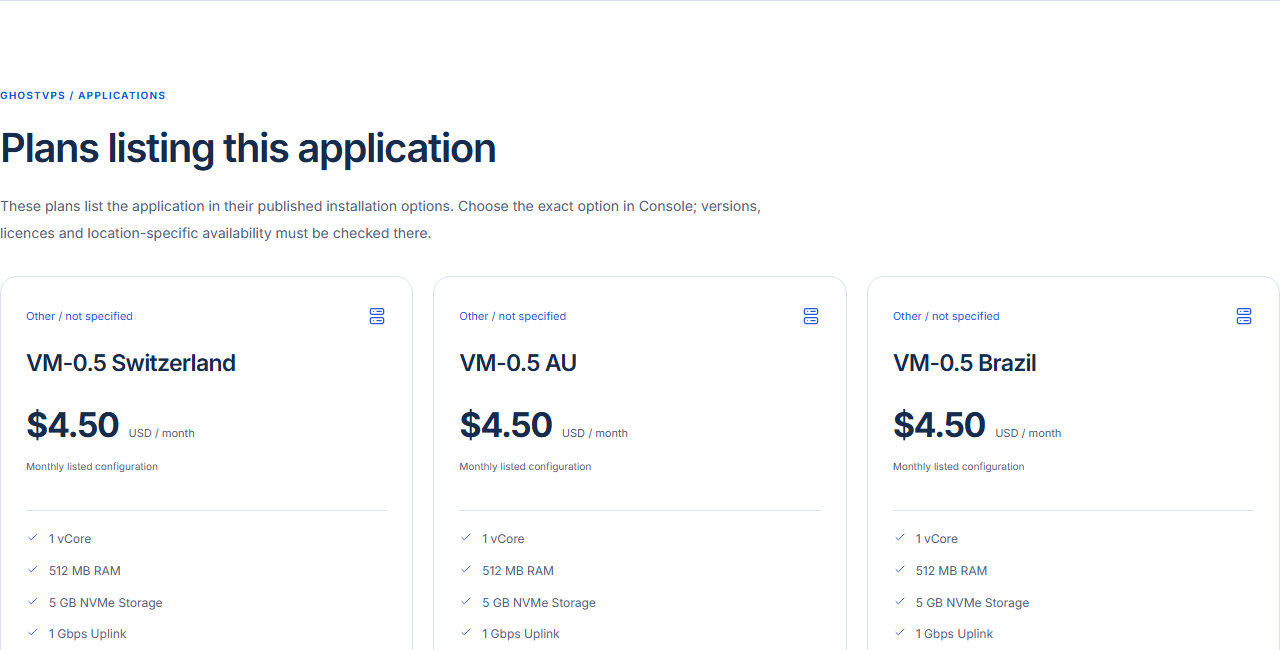
WordPress currently recommends a supported PHP version, MariaDB or MySQL and HTTPS. Verify the current versions available on the exact hosting plan or VPS image. Then list your theme, page builder, commerce plugins and expected media size; plugin requirements can exceed WordPress core’s baseline. A very small VPS card that lists WordPress as an installation option is not proof that it will handle your real site comfortably.
Apply the choice to common situations
- Small brochure site and no server administrator: start by checking hosting plan limits and support; avoid taking on Linux maintenance without a reason.
- Custom stack, workers or unusual server settings: compare VPS plans and budget time for updates, firewall rules, monitoring and restores.
- Growing store: measure peak PHP and database memory, disk growth and checkout performance. Compare the actual site under traffic; neither product category guarantees a faster store on its own.
Plan a migration before changing products
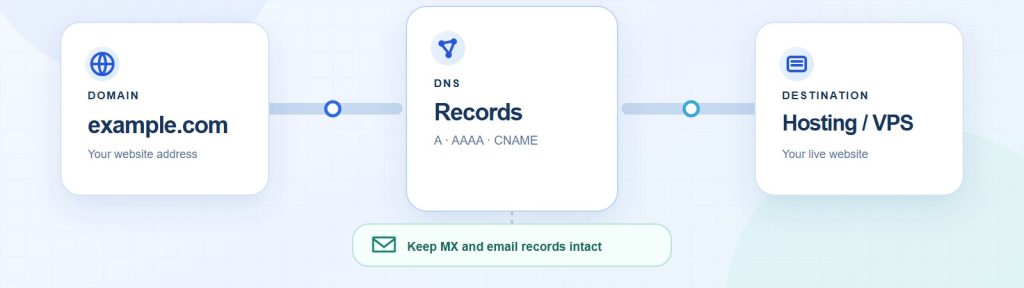
Export the database and site files, record the current PHP version and plugin list, and test a restore on the target. Lower DNS TTL ahead of the move where appropriate, keep the old site available for rollback, and check login, forms, payments, media and HTTPS before switching traffic. Do not cancel the source service until you have verified the target and a usable backup. If you need an independent copy, review Storage Box and the backup tutorials.
Compare the final hosting configuration and any setup charge in the Web Hosting category in Console; for a WordPress VPS image, follow the specific Configure in Console link on the application page. For broader VPS sizing, use the CPU, RAM and disk checklist.