GHOSTVPS / Connect
Deploy and connect to your free test VPS after ordering
Follow the actual GhostVPS Console screens from an active Free Test VPS service to a running Linux instance and SSH access.
Updated · GhostVPS
Before you start
A verified GhostVPS account with an active Free Test VPS service. The 30-minute clock starts when the service activates, before you deploy. Have an SSH client ready and use only disposable test data.
Find the active Free Test VPS service
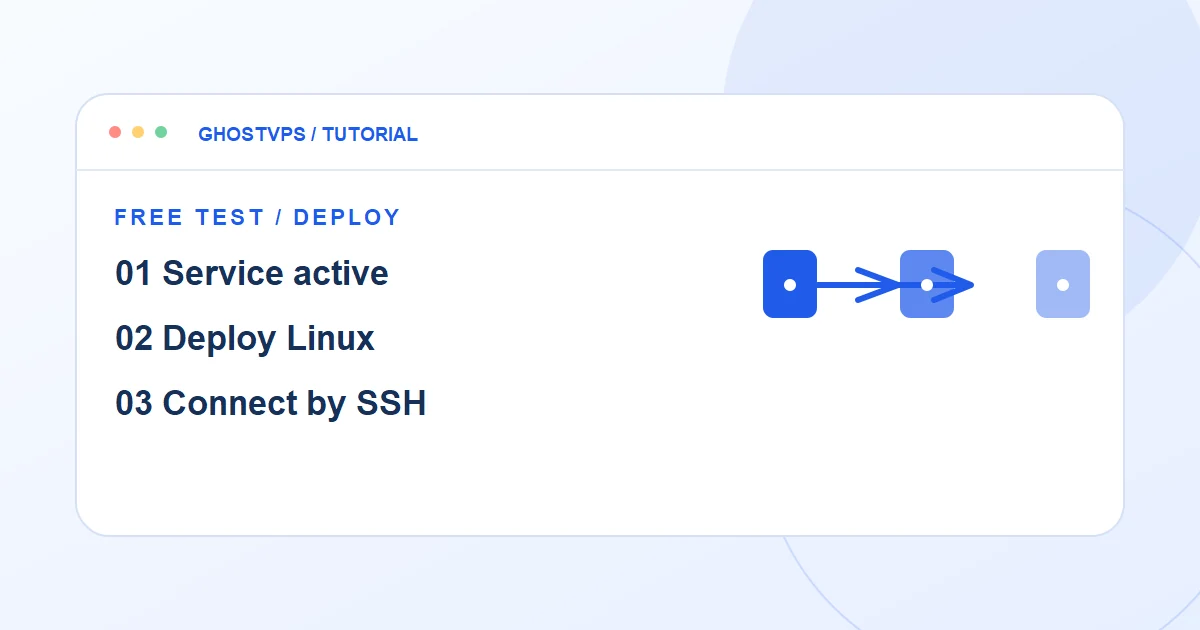
Sign in to Console, open Services → My Services, and select Free Test VPS. Active describes the service entitlement; it does not mean a server has already been created. If the service is pending, wait for activation rather than ordering another test.

Deploy one Linux instance
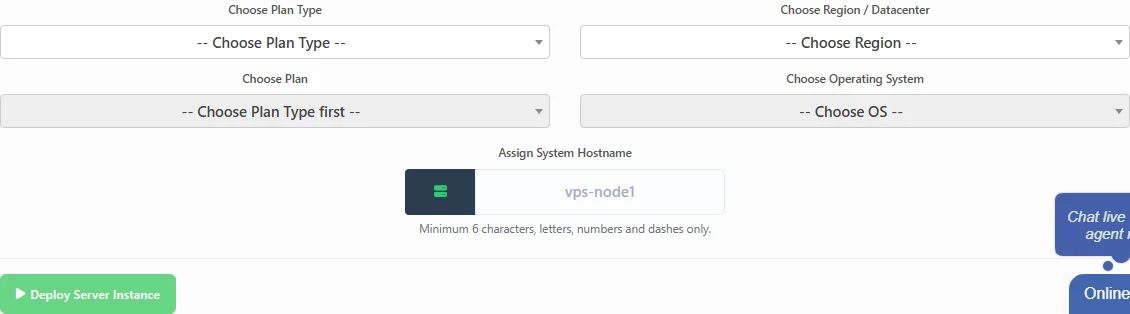
Open Cloud Compute Instances and choose Deploy New VPS. Select the available plan, location and Linux image shown by your service, then enter a hostname and submit Deploy Server Instance. The controls may unlock in sequence. The free test supports Linux only and one active instance at a time.
Wait for Running and record the IP
Return to Cloud Compute Instances and use Refresh Status if needed. When the instance is Running, copy its Primary IP from the row. If it remains pending, do not repeatedly deploy another instance; check the status and remaining deployment count, then contact support with the service ID if it does not progress.
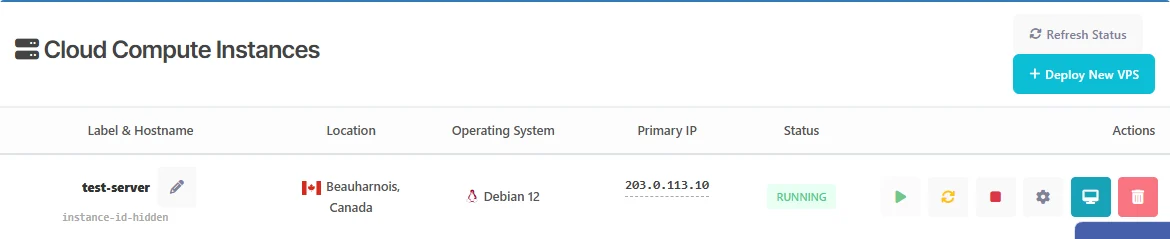
Open Manage and connect
In Actions, open the gear icon (Manage) and then Overview. Copy the shown IPv4 address and username. If the Password row says Set Password, set it before connecting. From your own computer, replace the example address and username in the SSH command below. Do not post credentials in a ticket or screenshot.
Your computer · terminal
ssh USERNAME@YOUR_SERVER_IP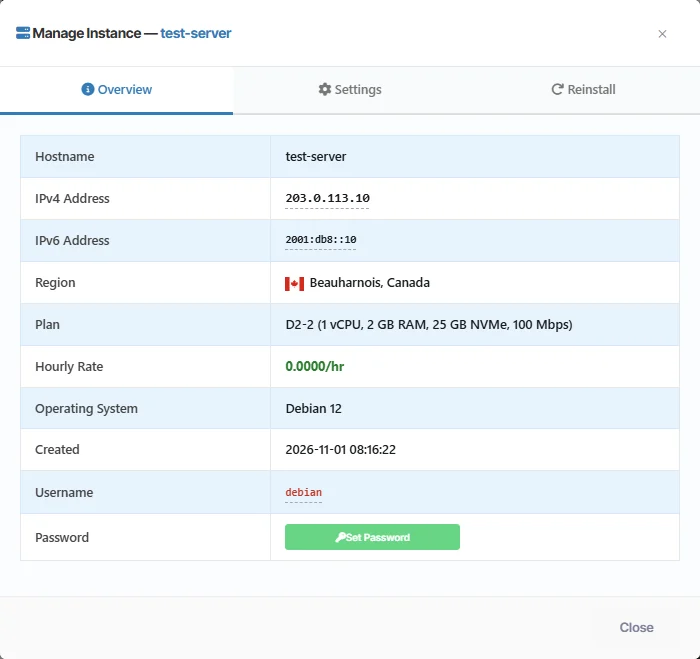
Finish the test before expiry
Run a small, disposable workload and record the result. The server is removed after the 30-minute window; save any needed output outside it. An eligible account can make up to three test deployments, while the service shows the actual remaining count.