Moving WordPress from shared hosting to a VPS: a rollback-first plan
Decide whether a VPS solves the problem, inventory the site, rehearse the move and switch DNS with a tested rollback plan.
Updated

Move a WordPress site to a VPS when a specific need justifies taking responsibility for the server: custom software, settings unavailable on your hosting plan, or a measured resource limit. A move alone does not guarantee a faster site. First document the problem, then plan a migration that you can reverse.
Decide whether a VPS solves the actual problem
If a plugin requires a PHP extension or background service that your hosting account cannot provide, a VPS may be appropriate. If the problem is an oversized image, a slow plugin or an unindexed database query, moving the same site can carry the problem with it. Compare the current Web Hosting limits with the control and work involved in WordPress on a VPS. Our hosting versus VPS guide covers that decision in more detail.
Make a migration inventory before touching DNS
- Record the WordPress, PHP, database and plugin versions, active theme, scheduled tasks and custom server rules.
- Measure database size, uploads, free disk, busy-hour CPU and memory, and normal page response times.
- List integrations that must keep working: forms, SMTP, payment callbacks, webhooks, analytics, login and caching.
- Write down all public URLs and redirects you must preserve, including any subdirectory or language paths.
Take a consistent backup of both files and database and prove you can restore it to an isolated environment. WordPress’s official migration guide also calls out URL and database changes. If the domain stays the same, avoid an unnecessary global URL replacement. If URLs do change, use a serialization-aware tool rather than a blind SQL string replacement.
Rehearse on the new server while the old site remains live
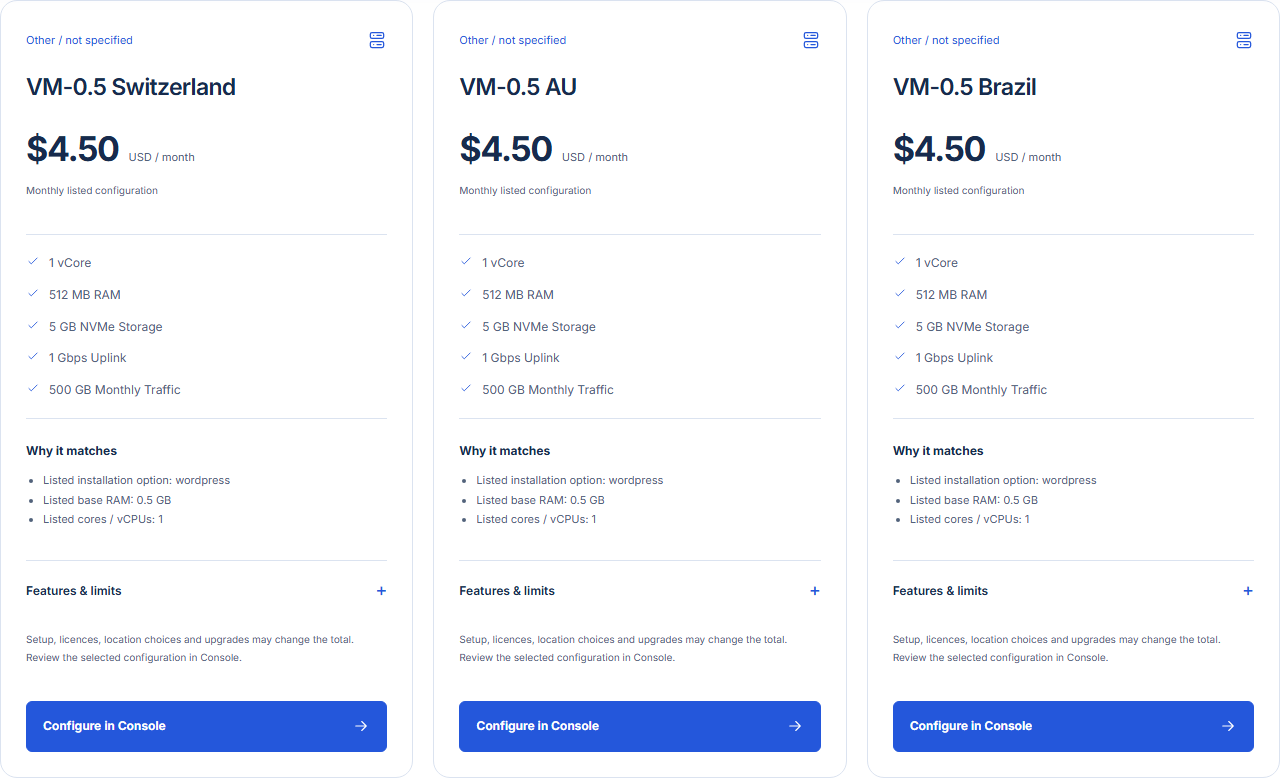
Choose a VPS that supports the required software and leaves room for the database, files and backups. Set up HTTPS, a supported PHP version, database access, scheduled tasks, mail delivery and monitoring. Restore a copy of the site, then test it using a temporary hostname or a local hosts-file mapping. Keep the test private to avoid duplicate indexing. Check the front page, search, forms, admin login, media, checkout and at least three old URLs.
| Check | Pass condition | If it fails |
|---|---|---|
| Content | Pages, media and redirects match the old site | Restore or correct the copied files and URL mapping |
| Transactions | Forms and callbacks reach the expected destination | Keep the old site live while investigating |
| Operations | Backup, updates and alerts have a named owner | Do not switch traffic until they are ready |
Switch traffic with a written rollback point
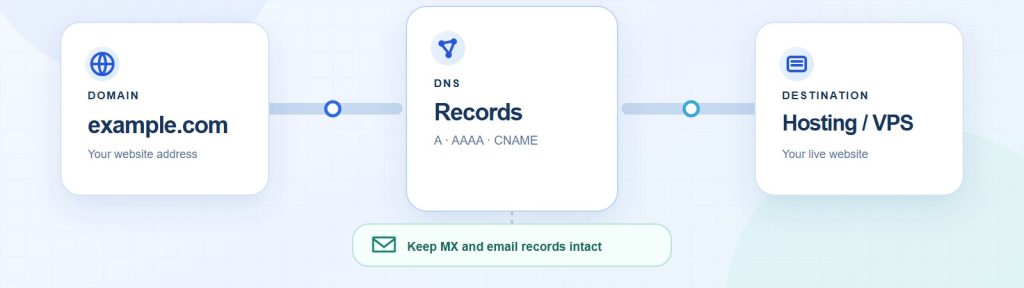
Choose a quiet period. Freeze content changes or define how new orders and comments will be reconciled. Make one final database and file copy, verify the new server against the checklist, then change the relevant DNS record at the authoritative DNS provider. DNS caches can delay the transition; monitor both servers and do not immediately destroy the old one. Our domain and DNS guide explains the record choices.
Define the rollback trigger before switching: for example, failed checkout, broken login or missing content. Rollback means pointing traffic back to a working old site and reconciling any writes made on the new site; simply reversing an IP address may lose orders. Retain verified backups and document who can execute the rollback. See the VPS backup and restore plan for the recovery exercise.
Reviewed 31 October 2026. This is a planning guide; follow the procedures of your actual hosting, DNS and payment providers.